Parking Tenants Dashboard
User Manual for Tenant Accounts

Introduction
The Metrici Parking Tenants Dashboard is the self-service interface for tenants of a parking facility managed with Metrici License Plate Recognition. A tenant is a group of people and vehicles that share something in common — a company renting an office floor, a department inside a factory, a household in a residential compound.
Your parking manager creates the tenant account, allocates a number of parking spaces to it, and hands you a username and password. From that point you look after your own vehicles: you register license plates, decide when each one is allowed to enter, import or export the list in bulk, and pass visitor access codes to your guests.
Logging In
Open the address supplied by your parking manager. It follows this pattern:
http://SERVER_ADDRESS/app/webroot/tenants/index.php
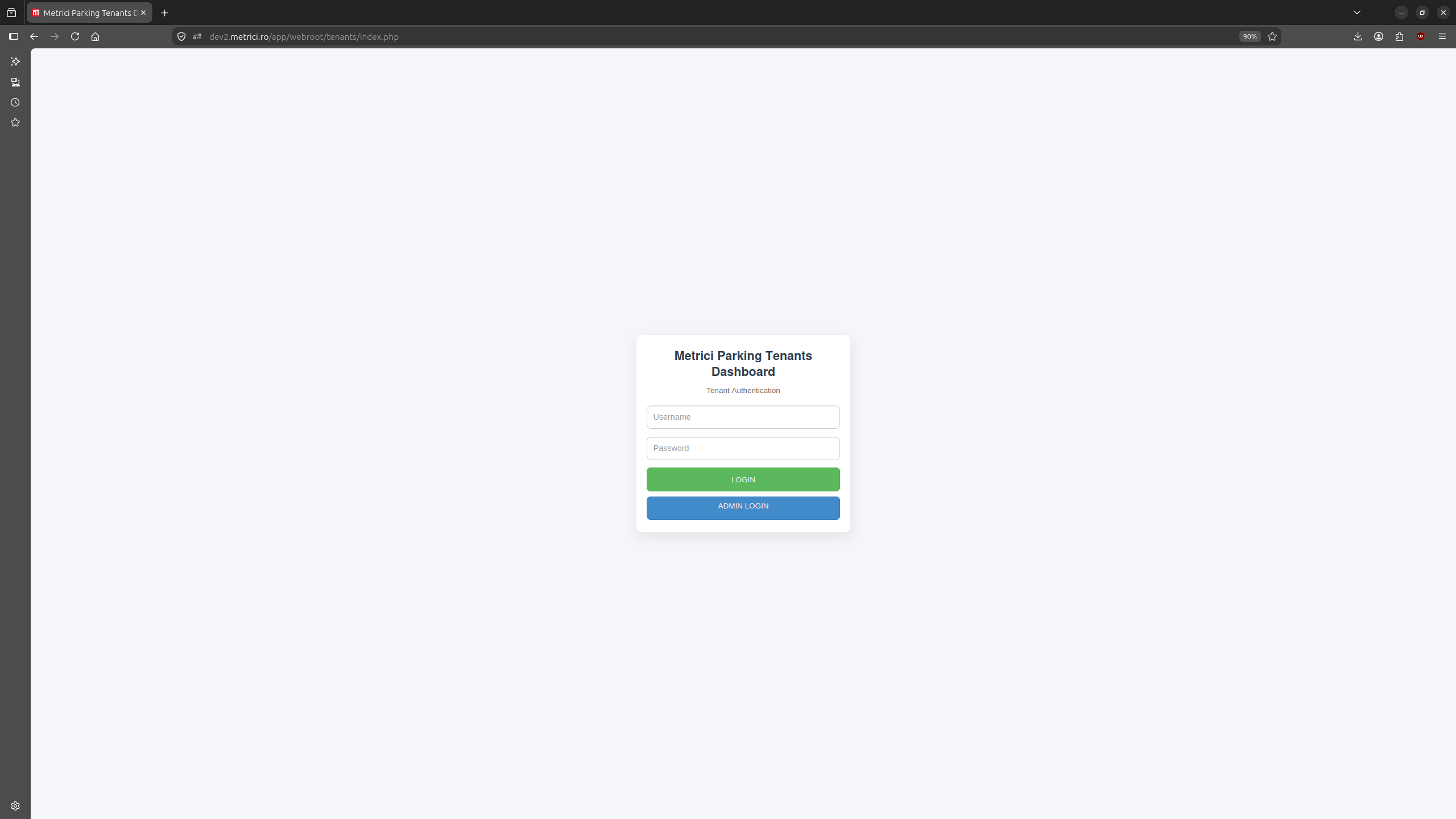
Enter the Username and Password you were given, then press the green LOGIN button — see Fig.1 Login.
The blue ADMIN LOGIN button below it leads to the administration interface. That area is reserved for the parking manager and your tenant credentials will not work there. Pressing it by mistake causes no harm — return to this page and use the green button instead.
Finding Your Way Around
After a successful login you land on the Dashboard. The screen has three fixed parts: a menu panel on the left, the working area on the right, and your tenant name in the top-right corner of the dark header bar.
The left menu holds four entries — see Fig.2 Dashboard (1, 2, 3 and 4):
- Dashboard — the visitor access code, your current occupancy, and the full list of registered plates
- Add plate — register a single vehicle
- Export plates — download your current list as a CSV file
- Import plates — upload many plates at once from a CSV file
Your tenant name in the top-right corner — Username(QR Test tenant) in the screenshots — doubles as a menu. Clicking it opens Change password and Logout, described in Account Settings.
The Metrici version number is printed in the footer at the bottom of every page. Quote it when you report a problem.
The Dashboard
The Dashboard is the page you will use most. It answers the two questions that come up daily: can another of our vehicles get in right now, and who exactly is on our list.
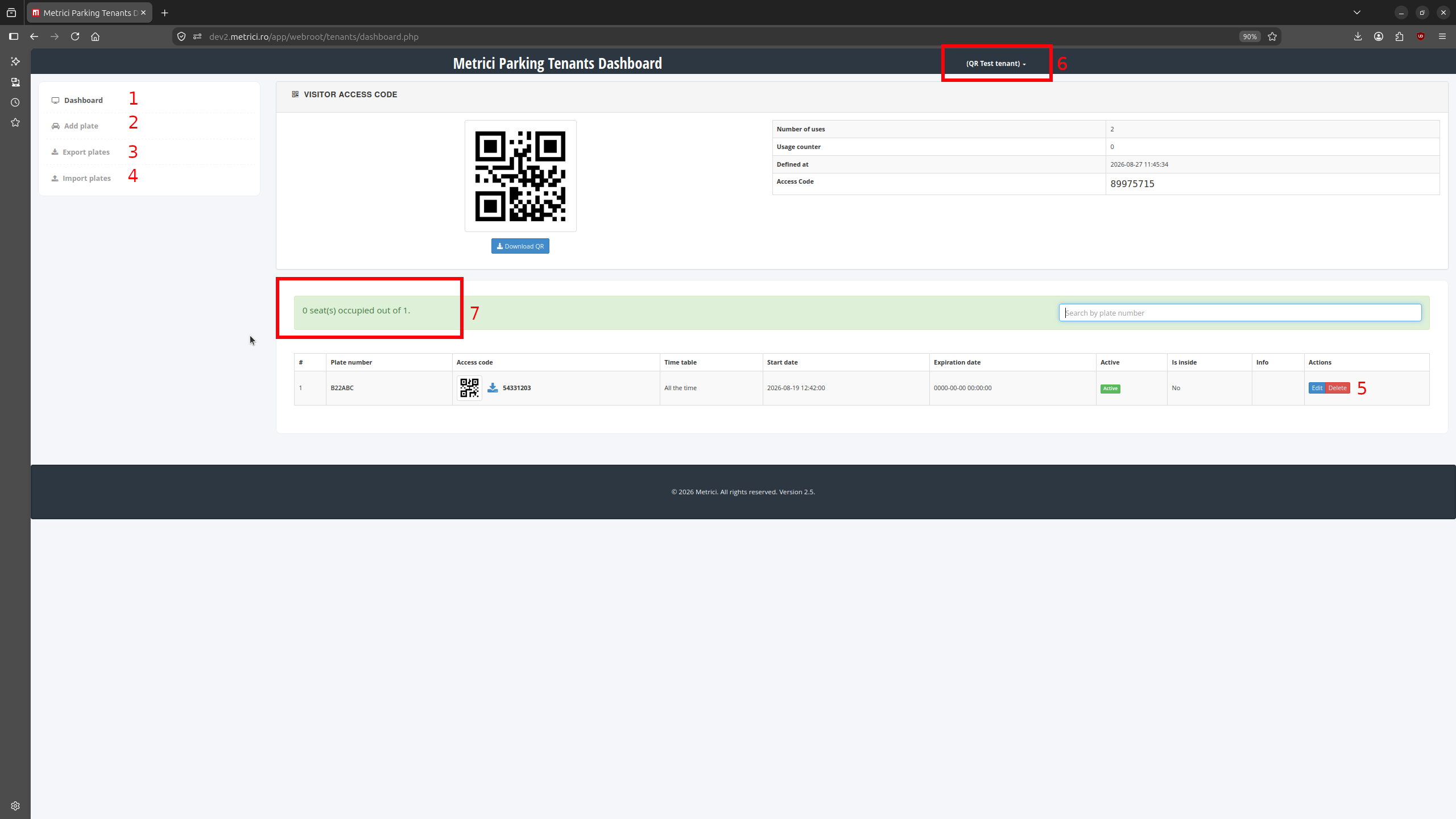
Visitor Access Code
The panel at the top of the page carries a QR image and a small table of details:
- Number of uses — how many times this code may be used before it stops working
- Usage counter — how many of those uses have already been consumed
- Defined at — the date and time the code was created
- Access Code — the numeric version of the same credential, for entrances where a guest types the code on a terminal keypad instead of presenting a QR
The Download QR button saves the QR image to your computer. Send it to your visitor ahead of the visit; they present it to the camera or access terminal at the entrance.
Contact your parking manager — by email, or through whatever channel your building uses — whenever you need:
- a visitor access code, if none is shown on your dashboard
- more uses on the current code, or a reset once the usage counter has caught up with the number of uses
- a code for a specific occasion — a delivery, a moving day, a client meeting, an event with several guest cars
- a code with a shorter or longer validity than the one you have
What to put in that message is set out in Asking the Parking Manager.
Space Occupancy
The green band below the access code panel reads 0 seat(s) occupied out of 1 — see Fig.2 Dashboard (7). The first number is how many of your vehicles are inside the parking at this moment; the second is how many spaces the parking manager has allocated to your tenant.
The band updates in real time as your vehicles enter and leave. Read it before you tell a driver to set off — it is the single most reliable indicator of whether they will be let in. What happens when the two numbers meet is explained in Parking Spaces and How the Barrier Decides.
The Plate List
The table at the bottom lists every license plate registered to your tenant. The Search by plate number field above it filters the table, which is worth using once the list runs past a screenful.
The columns are:
- # — the row number
- Plate number — the registered plate, written without spaces or dashes
- Access code — a numeric code and a downloadable QR belonging to this specific vehicle. It serves as a fallback when the plate itself cannot be read — a dirty or damaged plate, a temporary registration, a vehicle arriving at a terminal-controlled entrance. Like the visitor code, it is issued on the administrator side.
- Time table — the interval during which this vehicle may enter. All the time means no restriction.
- Start date — the moment from which access begins
- Expiration date — the moment after which access stops. A value of
0000-00-00 00:00:00means the plate never expires. - Active — whether the entry is currently in force. An inactive plate stays on your list but is refused at the barrier.
- Is inside — whether Metrici believes this vehicle is in the parking right now. Every Yes counts against your allocated spaces.
- Info — the free-text note you wrote when registering the vehicle
- Actions — Edit reopens the registration form with the current values filled in; Delete removes the plate — see Fig.2 Dashboard (5)
Parking Spaces and How the Barrier Decides
This chapter explains the behaviour that surprises most new tenants, so it is worth reading in full before you register your fleet.
Your parking manager allocates a fixed number of parking spaces to your tenant. That number appears on the right-hand side of the green occupancy band on your dashboard.
Registering plates is not limited by that number. You may add forty vehicles against ten allocated spaces, and the system will accept all forty entries. What the allocation limits is how many of your vehicles may be inside at the same time.
The three conditions
When a registered plate arrives at the entrance, Metrici checks:
- the plate is on your list and marked Active
- the current moment falls inside the plate's Time table, and between its Start date and Expiration date
- your tenant has at least one free space — occupied is lower than allocated
If all three hold, the barrier opens, Is inside switches to Yes, and your occupied count rises by one. If the third one fails, the barrier stays closed even though the plate is perfectly valid — and it stays closed even when the parking facility as a whole has plenty of room. A space is released when one of your vehicles exits: the count drops and the next vehicle can enter.
What this means in practice
- Check the occupancy band before promising anyone a space. It is faster than any phone call.
- If a vehicle shows Is inside — Yes but has demonstrably left, tell your parking manager. This can happen when a barrier is opened by remote control or when a car exits without being detected. Until it is corrected, that phantom vehicle holds one of your spaces and blocks a colleague. Only the administrator can reset the count.
- If your team consistently needs more room than the allocation permits, ask the parking manager to increase the number of allocated spaces. It is an administrator setting and cannot be changed from this dashboard.
- Registering a whole fleet against a small allocation is a legitimate arrangement — it works as a shared pool where any of your drivers may take a free space on a first-come basis.
Adding a Plate
Choose Add plate from the left menu to register a single vehicle.
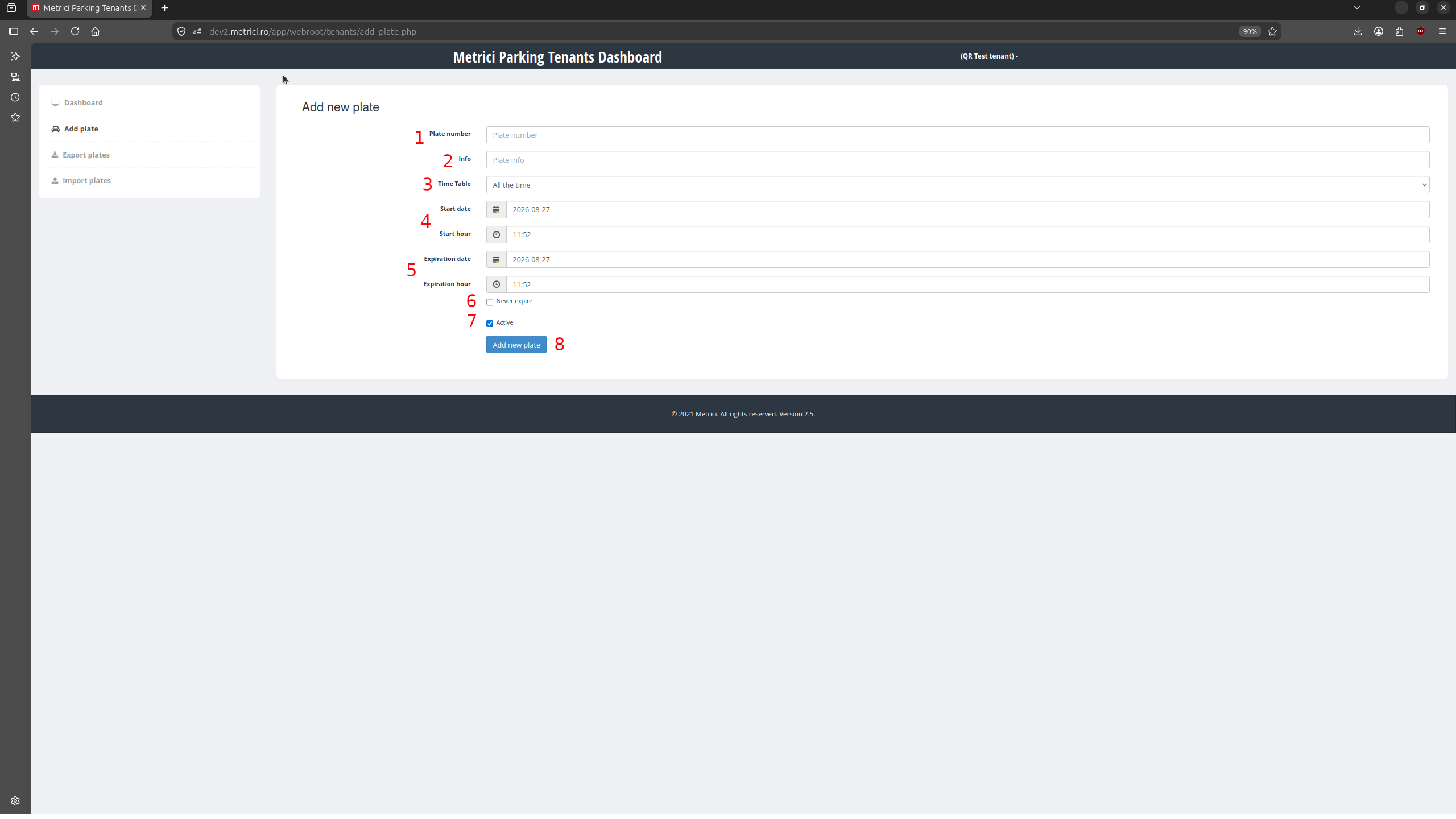
Fill in the form — see Fig.3 Add New Plate:
- Plate number (1) — the registration exactly as printed on the vehicle, with no spaces and no dashes, for example
B22ABC. A single wrong character means a refused entry, so copy it from the vehicle rather than from memory. - Info (2) — an optional note that appears in the Info column of your list. Driver name, apartment number, department, or a phone number all work well; six months later this is what tells you who a plate belongs to.
- Time Table (3) — when this vehicle is allowed to enter. All the time places no restriction. Any other entry in the list — working hours, weekdays only, a night shift — has been defined by your parking manager. If the interval you need is not offered, ask for it to be created.
- Start date and Start hour (4) — the moment access begins. Both default to now, which is what you want for a vehicle already on site. Set a future value for a contractor who starts on Monday.
- Expiration date and Expiration hour (5) — the moment access ends. Use it for temporary vehicles, visitors, and fixed-term contracts so that access lapses on its own.
- Never expire (6) — tick this for permanent vehicles. The expiration fields are then ignored and the list shows
0000-00-00 00:00:00. - Active (7) — ticked by default. Untick it to prepare an entry now and switch it on later.
- Add new plate (8) — saves the entry and returns you to the list, where the new plate appears immediately.
Setting an expiry rather than deleting later
For anyone who visits once — a supplier, an interview candidate, a repair crew — give the entry an expiration date instead of planning to delete it afterwards. Access ends by itself, the record stays in your list, and nobody has to remember to clean up.
Importing Plates
Choose Import plates when you need to register many vehicles at once — setting up a new tenant, taking on a fleet, or refreshing a seasonal list.
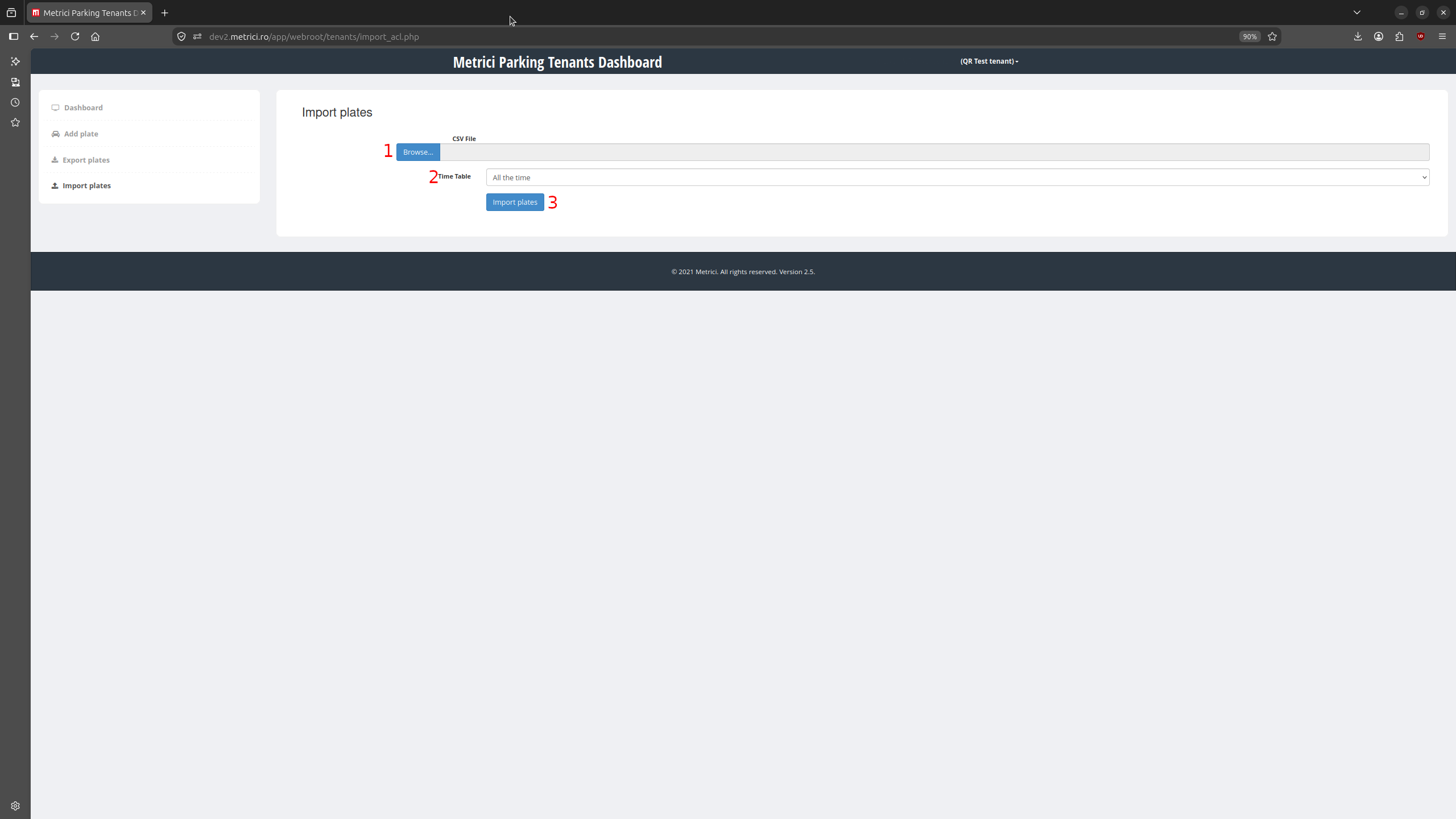
The page has three controls — see Fig.4 Import Plates:
- Browse… (1) — pick the CSV file from your computer. Its name appears in the field beside the button once selected.
- Time Table (2) — the interval applied to every plate in the file. If different vehicles need different intervals, import them as separate batches, or import them together and adjust the exceptions afterwards with Edit.
- Import plates (3) — uploads the file and adds the entries to your list.
Preparing the file
The most reliable way to get the layout right is to run Export plates first, even on an empty or nearly empty list. The exported file has exactly the columns Metrici expects, so you can use it as a template and fill in your rows underneath. Beyond that:
- one vehicle per row
- plate numbers written exactly as on the vehicle, without spaces or dashes
- no blank rows left at the bottom of the file
- saved as CSV — comma separated values — and not as an
.xlsxworkbook renamed to.csv
If your parking manager has published a specific import template for your site, use that in preference to anything else.
Exporting Plates
Choose Export plates from the left menu to download your current list as a CSV file. The export carries the full contents of the table — plate numbers, timetables, start and expiration dates, active status, and your info notes.
It is useful for several everyday jobs:
- taking a backup before a large change, so you can rebuild the list if something goes wrong
- producing a template for a bulk import
- sending a current vehicle list to your own facility or HR colleagues
- reviewing the list periodically for entries that have expired or belong to people who have left
Account Settings
Click your tenant name in the top-right corner of the header to open the account menu.

Two entries are available — see Fig.5 Account Menu (1):
- Change password — replaces the password on your tenant account. Do this the first time you log in, particularly if the credentials reached you by email or chat message.
- Logout — ends the session. Use it on any shared or public computer.
Asking the Parking Manager
Several things that affect your tenant are deliberately kept on the administrator side. None of them can be done from this dashboard:
- creating a visitor access code, or issuing a new QR
- changing the number of uses on a code, or resetting its usage counter
- changing how many parking spaces are allocated to your tenant
- creating or modifying the timetables that appear in the Time Table dropdown
- correcting the occupancy count when a vehicle left without being detected
- resetting your dashboard password
- creating a subtenant beneath your tenant — for example one per department
- releasing a plate that is already registered to another tenant
- anything to do with pricing, barriers, cameras, or facility-wide reports
Writing the request
Whether you send an email or use another channel, a request is handled fastest when it contains four things:
- your tenant name exactly as it appears in the top-right corner of the dashboard
- what you need, in one sentence
- the specifics — plate numbers, dates, number of uses, number of spaces
- when you need it by
Subject: Visitor access code for tenant QR Test tenant — 14 September
Hello,
We are hosting an audit on 14 September and expect three guest cars between 09:00 and 18:00. Could you issue a visitor access code with at least 3 uses, valid for that day? Our current code shows 2 uses with the counter at 0.
Tenant: QR Test tenant
Needed by: 12 September
Thank you.
Requests about allocated spaces are worth supporting with a reason — the number of vehicles you now run, the shift pattern, how often drivers are turned away. The occupancy figure on your dashboard is concrete evidence and easy to quote.
Troubleshooting
The barrier did not open for a plate that is on my list
Work through the four checks in order. Is the plate spelled exactly as it appears on the vehicle, with no spaces or dashes? Is Active ticked? Does the current moment fall inside the plate's time table and between its start and expiration dates? And does the occupancy band show a free space? The last one accounts for most cases.
A colleague cannot get in although the parking looks half empty
Access is judged against your own allocation, not against the facility. If your spaces are all taken, entry is refused no matter how much room there is elsewhere. Check whether a vehicle marked Is inside — Yes has in fact already left; a phantom vehicle occupies a space until the administrator clears it.
The visitor code stopped working
Compare Usage counter against Number of uses. When they match, the code is spent. Ask your parking manager for a reset or a new code — neither can be done from this dashboard.
The plate was rejected as a duplicate
The same vehicle is already registered to another tenant. Metrici does not allow one plate to sit in two tenant lists at once. Ask your parking manager to release it.
The time interval I need is not in the Time Table list
Timetables are defined centrally by the administrator. Describe the interval you need — days of the week and hours — and ask for it to be added. Until then, All the time combined with an expiration date is the usual workaround.
I deleted a plate by mistake
Register it again from Add plate. It comes back as a new entry, so the timetable, validity and info note need to be filled in once more — another reason to keep a recent export on hand.
The QR downloaded but the visitor could not use it
Check the counters first. If uses remain, make sure the guest is showing the image at full screen brightness, or that a printed copy is sharp and unfolded. If it still fails, the numeric Access Code from the same panel can be typed on the terminal keypad where one is fitted.
I forgot my password
The login screen has no recovery link. Your parking manager resets the account, after which you can set your own password from Account Settings.